
SimTag: Context for your iOS Simulators
See which branch your simulator is actually running.
Even before AI coding, I’d often have multiple copies of the same project open—using git worktrees or separate clones—to work on different branches in parallel.
Now, with multiple Claude Code sessions running at once, each doing work on a different branch, that setup is even more common.
The result is multiple simulators running at the same time, all looking identical, with no clear way to tell which branch any of them is actually running. SimTag fixes that.
What SimTag Does
SimTag adds a small, unobtrusive overlay to each iOS Simulator window showing the branch that build came from.
That’s it.
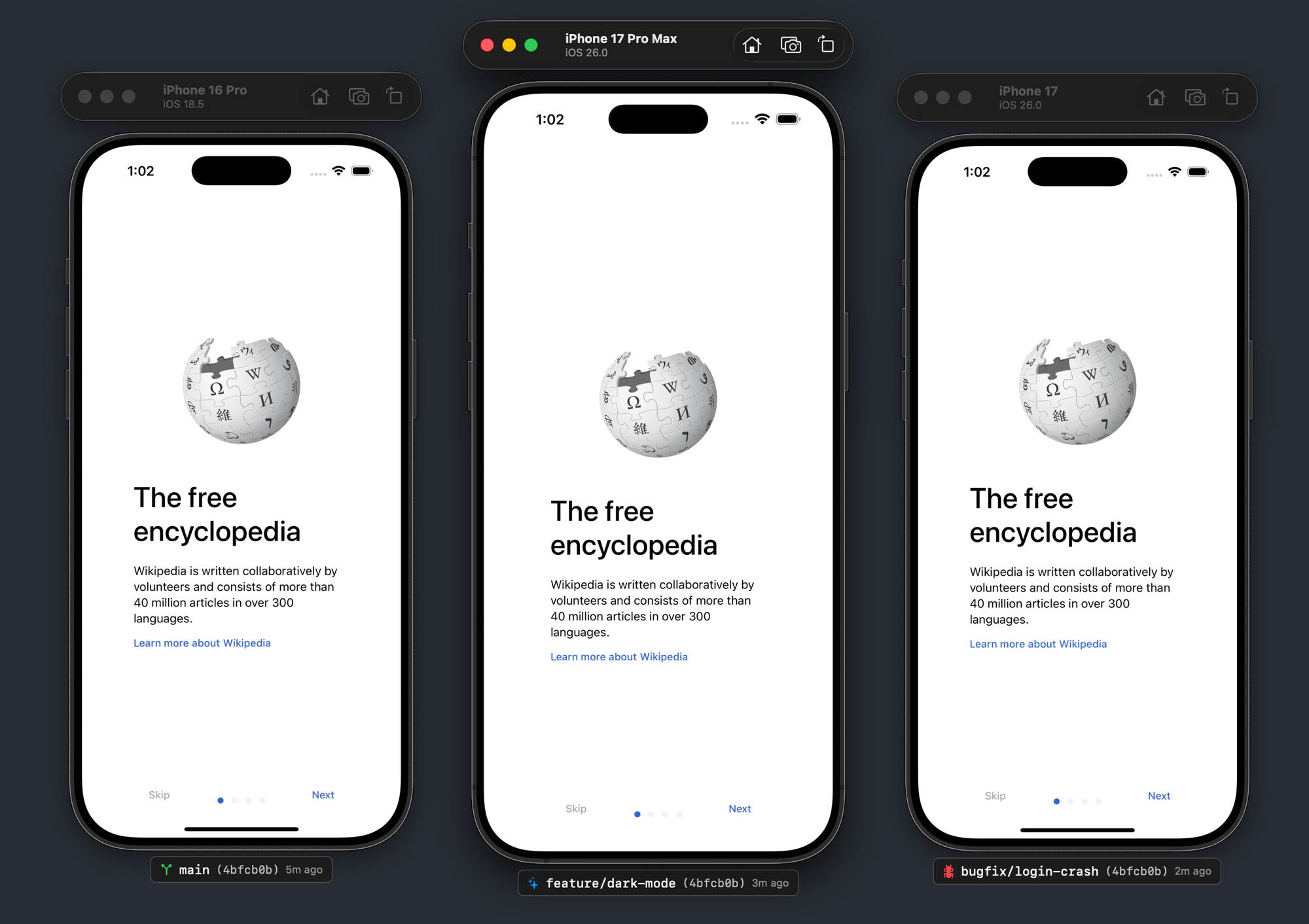

When you glance at a simulator, you immediately know what you’re looking at. No more wondering:
- Did I rebuild after switching branches?
- Which Simulator has the auth changes?
- Am I debugging my own work or a coworker’s branch?
If you do any kind of parallel development—worktrees, PR reviews, or AI-assisted coding—this removes a constant source of confusion.
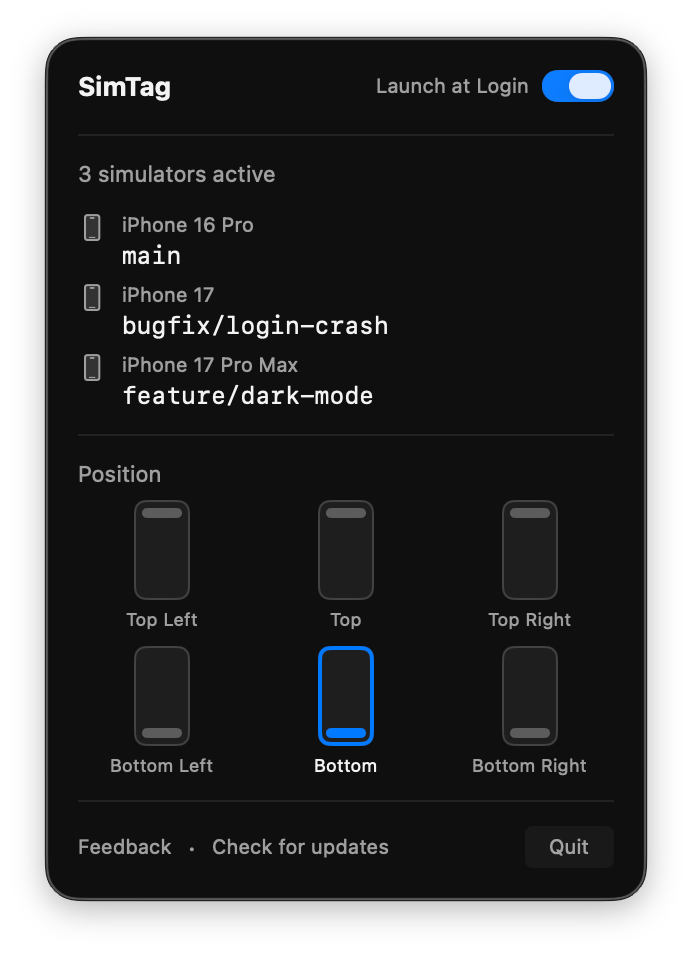
SimTag is especially useful for power users running parallel workflows. If you use git worktrees, multiple clones, or have several AI coding sessions (e.g. Claude, Codex) building to different simulators, you’ll always know which Simulator is running which branch.
But even if your workflow is simpler, SimTag still helps. A quick glance confirms the Simulator matches the branch you think you’re on. The "Pending Build" indicator catches “forgot to rebuild” moments by warning you when commits exist since the last build. During PR reviews, it acts as a sanity check—you’ll know for sure you’re testing your colleague’s code, not your own.
The overlay is unobtrusive and easy to ignore—until you need it.
Features
Branch overlay
See the git branch for every simulator window at a glance.
Pending build indicator
SimTag detects when you’ve made commits since the last build. A small warning dot tells you the running app might be stale—no more debugging code that isn’t even in the build.
Custom labels
Add your own text to the overlay. Useful for marking simulators as “PR Review”, “Testing”, or whatever helps you stay oriented.
Details
- macOS 13+
- Requires Screen Recording permission (used only to track window positions—not to record anything; setup is guided on first launch)
- Runs in the menu bar
- Optional launch at login
- Overlay position is configurable (any corner, top/bottom center)
I use SimTag every day now. It’s one of those tools you don’t think about—until it’s missing.

Getting Started
- Download SimTag
- Move the application to the Applications folder.
- Launch and allow
Screen & System Audio Recordingpermissions (System Settings → Privacy & Security → Screen & System Audio Recording). - Grant file access permissions when prompted.
That's it!
FAQ
Multiple Xcode projects open?
SimTag figures out which project produced each specific simulator build.
React Native / Flutter?
Works fine. SimTag detects the git branch of whatever Xcode project built the app.
Git worktrees?
Fully supported. Each worktree shows its own branch correctly.
Questions or feedback?
[email protected]